
STEP 01
Choose your music
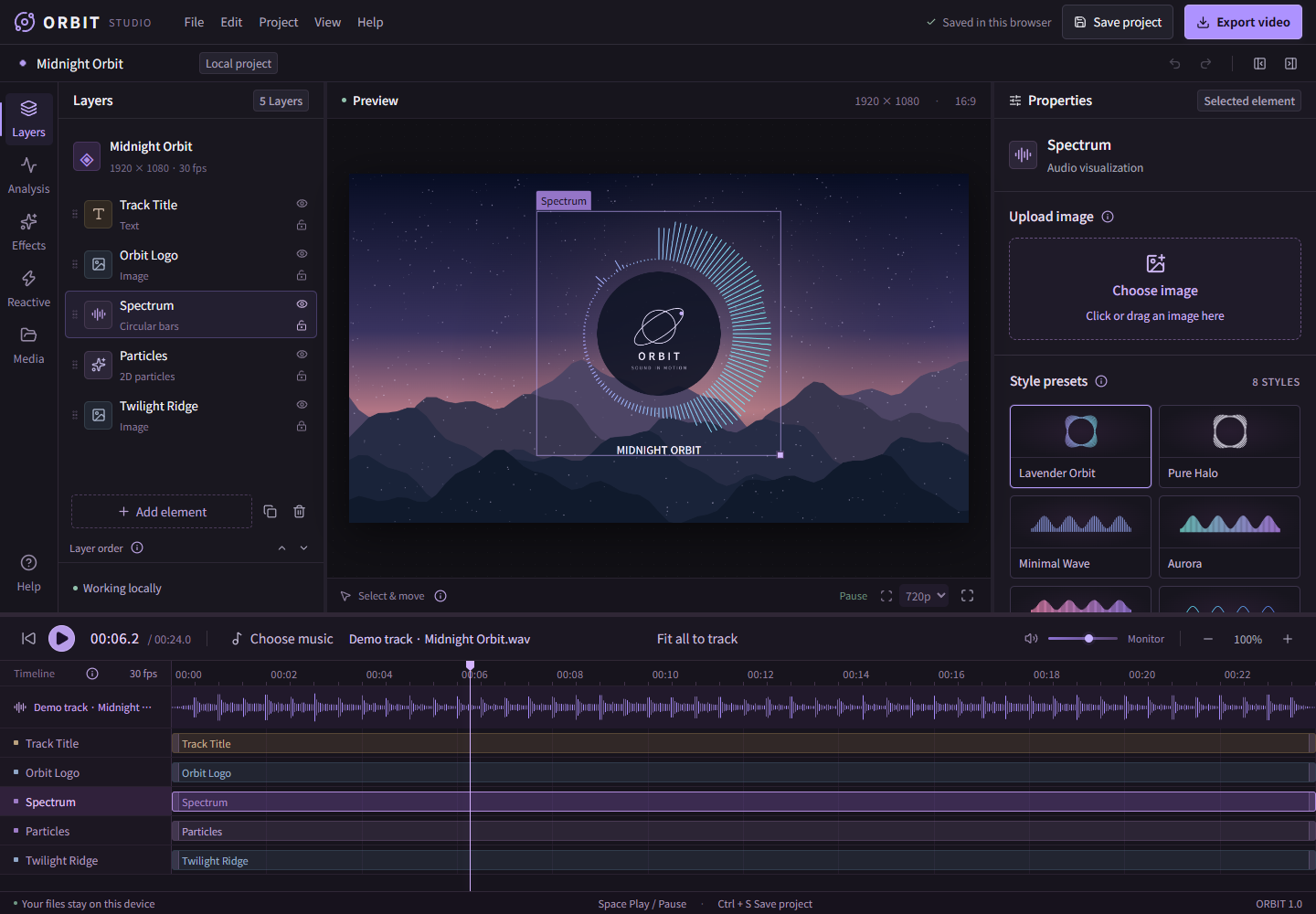
Open the editor on a desktop with a window at least 1000px wide. It starts with a demo so you can try the controls before importing anything. Press Play above the timeline, or press Space when you are not typing in a field.
- Click Choose music in the bar above the timeline.
- Select an MP3 or WAV file and wait for the audio analysis to finish.
- Check the filename next to the button and press Play. Click or drag on the waveform to jump to a different part of the track.
Use music and visuals you have permission to edit and publish. Imported media is processed in your browser. Audio files can be up to 10 minutes and 100MB.
STEP 02
Build your scene, one layer at a time
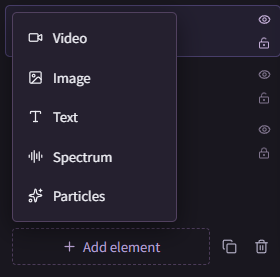
Click Add element beneath the layer list on the left. Choose Image, Video, Text, Spectrum or Particles. Each creates its own layer and timeline row.
To add another visualizer, choose Add element → Spectrum. To change an existing one, select its layer instead.
Select a layer to show its settings in the right-hand Properties panel. Scroll inside that panel to reach more controls.
Add or replace your background
Choose Add element → Image, then a PNG, JPEG or WebP file. Select the new layer and click Fit as background in its properties. Right-click the layer and choose Send to back to place it behind the other elements.
To keep an existing image layer’s settings, select that layer and use Replace selected image in the right panel, or drag one image onto that replacement area. This keeps its placement, timing and effects. Use Add as a new image when you want an extra layer instead. Unlock the layer first if its controls are disabled.
Style the spectrum and text
Select a spectrum layer, choose a Style preset, then adjust Shape, colors, Spectrum sensitivity and Amplitude while listening. Select a text layer and edit Content, font size and color. Drag an unlocked element in the preview to move it, or drag a corner to resize it.
For subtle movement, select an image or video and find its Beat zoom controls. Start with the smallest intensity and preview a loud part of your track before increasing it. Hover an ⓘ icon for a control’s explanation.
STEP 03 · OPTIONAL
Turn a short clip into a loop
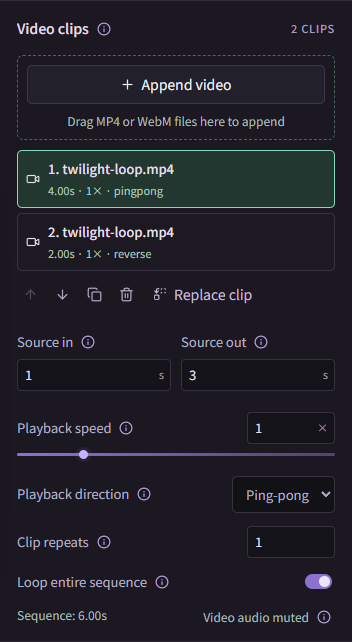
Choose Add element → Video and select an MP4 or WebM file. In the right panel, Video clips contains the sequence for that layer. Video clips are muted: your selected music track supplies the sound.
Try a two-second segment
- For a source at least four seconds long, set Source in to 1 and Source out to 3. These values are seconds within the original file.
- Leave Playback speed at 1×, or change it from 0.25× to 4×.
- Choose Playback direction → Ping-pong for forward, backward, forward, backward playback. Reverse plays backward on every pass.
- Enable Loop entire sequence, then use Fit to full track in the General section below to extend this layer to the end of the music.
At 1× speed, the 1–3 second segment lasts two seconds in one direction. In Ping-pong mode, one forward-and-back cycle lasts four seconds.
Put several clips in one layer
Use Append video, or drop MP4/WebM files onto the append area. Select each clip to set its own source range, speed, direction and Clip repeats. Use the up/down arrows to move it earlier or later in the sequence.
Replace clip changes the selected source while keeping its settings where the new source duration allows. Loop entire sequence repeats the complete list; Clip repeats repeats just that clip within the list.
A video element has its own start and end on the project timeline. Enabling a loop does not extend that layer’s end time by itself. Use Fit to full track as well when you want it to cover the whole song.
STEP 04
Match the scene to the track
Each row below the waveform shows when one layer is visible. Drag the ends of its bar to trim its timing, or enter Start and End in the General section of its properties.
- Fit all to track, beside Choose music, extends every unlocked element from the start to the end of the song.
- Fit to full track in Properties changes only the selected unlocked element.
- Layers higher in the list appear in front. Drag layers to reorder them, or right-click for ordering and deletion options.
After replacing the music with a longer track, check the layer lengths again. Preview the beginning, a loud section and the ending before exporting.
STEP 05
Keep a project you can return to
Click Save project at the top of the editor, or use File → Save project file. The downloaded .mviz file includes your project settings and referenced media. Reopen it with File → Open project.
The editor also saves a recovery copy in the same browser on the same site. Clearing browser data, changing browsers or starting another project can leave you without that copy. Save a separate .mviz file before making major changes or closing an important project.
A project file is for continued editing. Export a video separately when you are ready to share the finished result.
STEP 06
Export your finished video
- Click Export video at the top right. Export opens on its own page.
- Choose Resolution: 720p or 1080p. Exports use 16:9 at 30fps.
- Choose an available File format and Quality. MP4 uses H.264/AAC; supported WebM options depend on your device. Start with Standard, or choose High or Ultra for a higher target bitrate.
- Click Start export. If asked, choose where to save the file. Otherwise it downloads when ready. Keep the page open until export finishes.
- Play the saved video and check the sound, timing and picture before sharing it.
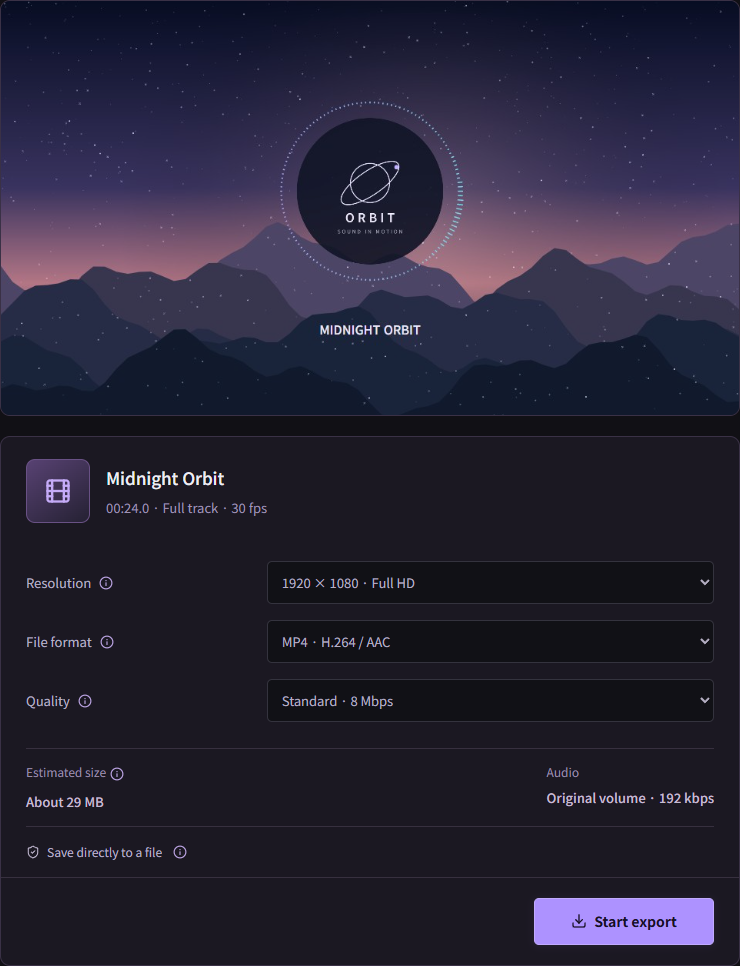
Estimated size is an estimate from the target bitrate. The actual file can be smaller because compression depends on the scene. The preview’s Monitor volume does not change exported audio volume.
WHEN SOMETHING GETS IN THE WAY
A few quick checks
- I cannot edit or replace an element.
- Check the layer’s lock icon. Unlock it before changing its properties. Select the layer itself to show the correct settings.
- My background covers the spectrum.
- Right-click the background layer and choose Send to back. Check that the spectrum’s eye icon is on and its timeline range includes the current playback position.
- The video stops before the music ends.
- Enable Loop entire sequence and extend the video layer with Fit to full track. Also check the other layers’ end times.
- MP4 is not listed, or export is too large.
- Use one of the formats offered by your device. For large exports, use direct file saving in a compatible desktop browser, or lower resolution or quality. Keep a project backup before switching browsers.
For file limits, see the FAQ. If a problem persists, contact support with your browser, operating system, steps and error message.
Your track. Your scene.
Try one change at a time, listen back, and save a copy you can keep.
Open editor